


Why Every Developer is Switching to Cursor AI?

It looks like VS Code, feels like VS Code, but it writes the code for you. Here is the ultimate 2025 guide to the AI-first editor that is changing software development forever.
For the last decade, Microsoft's VS Code has been the
undisputed king of code editors. It is fast, extensible, and free. It has
dominated the market so completely that other editors like Atom and
Sublime Text practically vanished.
But in late 2024, a paradigm shift occurred. A new challenger appeared that didn't just "add AI" as a plugin, it was built around AI from the ground up.
Meet Cursor.
Cursor is a fork of VS Code. This is crucial because it means all your favorite extensions, themes, and keybindings work instantly. You lose nothing by switching.
But what you gain is profound. Cursor predicts your next edit, fixes your bugs automatically in the terminal, and can rewrite entire files across your codebase with a single natural language prompt. It is the difference between having a spellchecker and having a professional editor sitting next to you.
In this comprehensive guide, I will show you how to make the switch painlessly, demonstrate a real-world workflow, and reveal the "Power User" features that 90% of people miss.
⚔️ The Showdown: VS Code (+ Copilot) vs. Cursor
Many developers ask: "Why not just use VS Code with GitHub Copilot?" It is a fair question. The difference lies in Context.
GitHub Copilot generally only examines the file you are currently editing (and possibly a few open tabs). It doesn't "know" your whole project. Cursor, on the other hand, indexes your entire codebase. It knows how your database schema in `schema.sql` relates to your frontend component in `UserCard.tsx`.
| Feature | VS Code + Copilot 🤖 | Cursor AI 🧠 |
|---|---|---|
| AI Integration | Extension (Plugin) | Native (Built-in Core) |
| Context Awareness | Current File Only (Mostly) | Entire Codebase Indexing |
| Multi-File Editing | ❌ No (Chat Only) | ✅ Yes (Composer Mode) |
| Terminal Integration | Basic Suggestions | ✅ Auto-Fix Errors ("Agent") |
| Documentation | Manual Search | ✅ Add Docs via URL (@Docs) |
🚀 How to easily Switch in 5 Minutes
The biggest barrier to switching editors is setting everything up again. Losing your carefully crafted settings, themes, and keybindings is a nightmare. Cursor solved this completely.
Step 1: Download the Core
Go to the official website (cursor.com). It is available for Mac, Windows, and Linux. Ensure you download from the official source to get the verified build.
⬇️ Download Cursor for FreeStep 2: The "One-Click Migration" Trick
This is the most important step. When you first open Cursor, a pop-up will appear asking: "Do you want to import extensions and settings from VS Code?"
CLICK YES.
Cursor will scan your existing VS Code installation and copy over your themes, your keybindings, and all your plugins instantly. When it launches, it will look exactly like your old setup.
Step 3: Activate "Cursor Tab"
Go to the settings gear ⚙️ and ensure the "Cursor Tab" feature is enabled. This is their version of autocomplete, but on steroids. It doesn't just complete the current line; it predicts the next few lines based on where your cursor is moving.
🛠️ Real-World Scenario: Building a Login Button
Let's move beyond theory. How does this actually feel when you are coding? Let's say we want to add a login button using a specific library like "Shadcn UI".
The Old Way (VS Code)
You would open Chrome, search for the Shadcn docs, copy the code, paste it into your file, realize you forgot to import the button component, scroll up, add the import manually, and then style it.
The Cursor Way
You simply press Cmd + K (to generate code) and type:
What happens next is magic:
- Cursor checks if you have Shadcn installed.
- It writes the import statement.
- It writes the component code.
- It adds the CSS classes for the gradient.
You just hit "Accept," and the feature is done. You never left the keyboard.
🔥 4 "Pro Features" You Must Try Immediately
Most beginners just use the basic chat sidebar. But to unlock the 10x speed boost, you need to master these four tools.
1. The "Composer" Mode (Cmd+I)
This is the killer feature. Press Cmd + I (Ctrl+I on Windows) to open a floating input box.
Unlike standard chat, Composer can edit multiple files simultaneously. You can say: "Change the primary button color to blue in the CSS file and update all React components to use the new class." Cursor will figure out dependencies and apply changes across the board.
2. Teach It New Tricks (@Docs)
Is the AI using outdated code for a new library? You can fix that.
In the chat, type @Docs. Paste the URL to the documentation of the library you are using (e.g., Stripe API, Shadcn UI). Cursor will crawl that page, learn the new syntax, and write accurate code based on the latest rules.
3. The Terminal "Auto-Fix"
We all hate seeing bright red error messages in the terminal.
With Cursor, when a command fails, a small "Fix with AI" button appears next to the error. Click it. Cursor reads the error log, understands what went wrong (e.g., "Missing dependency"), and suggests the exact command to run to fix it.
4. Choosing Your Brain (Models)
Cursor lets you choose which AI model powers it. This is a huge advantage.
My Advice: Use Claude 3.5 Sonnet for coding tasks. In almost every benchmark, Claude beats GPT-4o when it comes to writing complex, bug-free code. You can toggle this right in the chat window.
Frequently Asked Questions
Switching editors is a big commitment. Here are the answers to the most common concerns developers have.
Is Cursor free to use?
Yes, there is a generous free tier. You get access to their standard AI models for free. For heavy users who want unlimited use of the most powerful models (like GPT-4o or Claude 3.5 Sonnet) inside the editor, there is a paid "Pro" subscription ($20/month), which is very similar to GitHub Copilot's pricing but offers more features.
Is my code safe? Does Cursor steal it?
Privacy is a major focus for them. By default, your code is sent to the AI models to generate suggestions, but it is not trained on. For enterprise users or the security-conscious, Cursor offers a "Privacy Mode" in the settings. When enabled, your code is never stored on their servers; it is strictly pass-through to the API and then deleted.
Can I easily switch back to VS Code if I don't like it?
Absolutely. Since Cursor doesn't delete your VS Code installation, you can just close Cursor and open VS Code again. All your settings there remain untouched. It is completely risk-free to try.
📺 Watch the Masterclass (Traversy Media)
To see these features in real-time action, check out this fantastic deep dive by Brad Traversy. He walks through setting up a project and using the advanced "Agent" workflows.
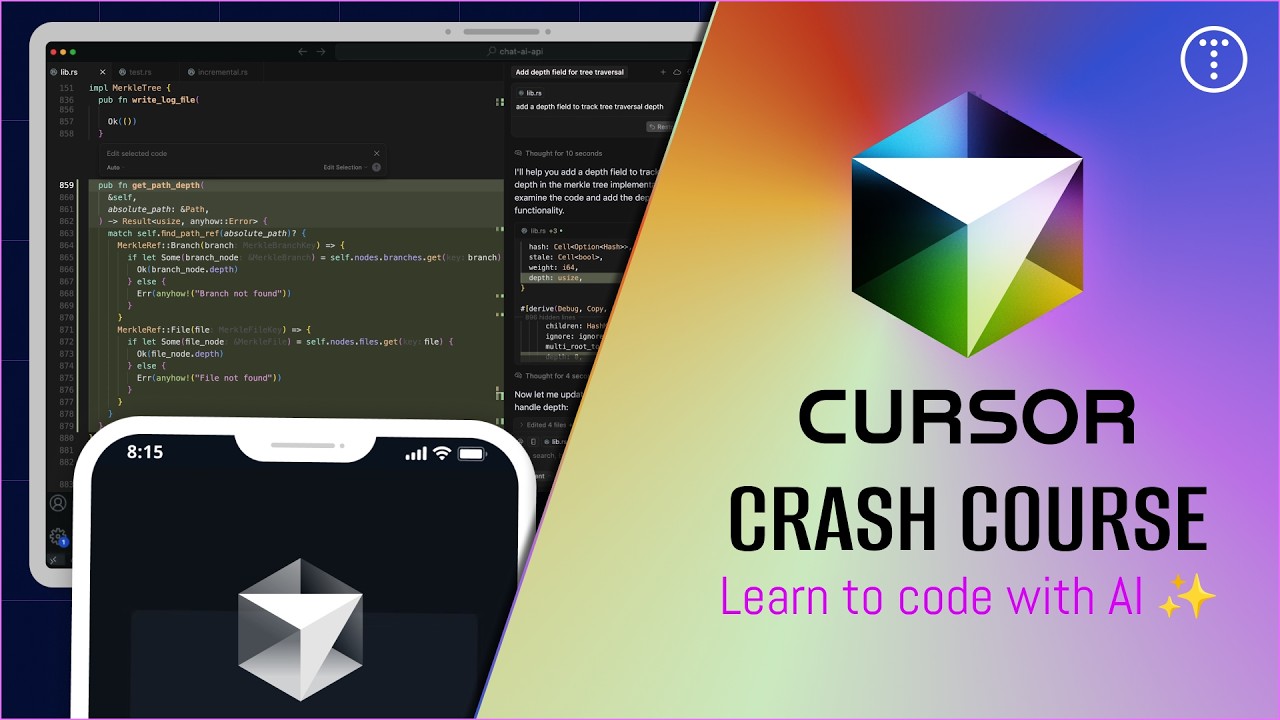
Credit: Traversy Media (YouTube)
In Summary, The Future Will Be Driven By AI
VS Code is an incredible piece of software, but it belongs to the previous era of development. Trying to bolt AI onto it via plugins will always feel clunky compared to an editor where AI is the foundation.
If you are a serious developer looking to maximize your efficiency in 2025, the question isn't if you will switch to an AI-native editor like Cursor, but when.
👇 Are you Team VS Code or Team Cursor? Let me know your thoughts in the comments!


Welcome! Leave a comment, and we will reply to you as soon as possible.